
Email overload is a reality for many professionals – the average business receives around 10,500 emails per month, and customers expect rapid replies (46% of e-commerce customers expect a response within 4 hours). Automating responses with AI can dramatically improve productivity and response times.
Qwen AI – a powerful large language model from Alibaba Cloud – can read and generate human-like text, making it an ideal assistant for handling routine emails. In this guide, we’ll explore the highest-value email use cases for automation, how to set up Qwen with Gmail for both individual users and using Google Workspace (business) accounts, multiple implementation methods (from Google Apps Script to Python and no-code tools), and best practices on keeping humans in the loop versus fully hands-off automation. The goal is to help you save time on email while maintaining quality, with an article comprehensive enough to rank well on Google.
High-Value Email Use Cases for Qwen Automation
Not all emails are equal – some categories offer a much higher return on investment when automated. Here are the core email scenarios where using Qwen AI can make a big impact in Gmail:
- Customer Service Inquiries: These include common support emails about order issues, account problems, refund questions, or troubleshooting. They tend to be repetitive, and Qwen can generate helpful answers using knowledge base content or past examples. This improves response speed and consistency – AI email automation has been shown to handle requests up to 80% faster than manual responses, with around 90% accuracy. Faster replies lead to higher customer satisfaction and lighten the load on support agents.
- Sales & Lead Emails: Inbound emails requesting product information, pricing quotes, demos, or follow-ups are critical to revenue. Qwen can draft polite and detailed responses to prospects inquiring about your services. For example, if a potential customer emails “Can I get a quote and details about your product?”, Qwen could automatically reply with a formatted email containing pricing tiers, feature highlights, and an offer to schedule a demo. This quick turnaround keeps leads warm without making them wait for a sales rep. It ensures every inquiry gets a prompt, professional answer – potentially increasing conversion rates by being first to respond.
- Internal Team Communications: Inside your organization, Qwen can help draft or summarize routine emails among colleagues. Think of meeting recap emails, status updates, or clarification requests. Instead of an employee spending time composing a summary of yesterday’s meeting, they could have Qwen generate a first draft based on the meeting transcript or notes. Similarly, if a teammate asks for an update on a project, Qwen can pull key points from project documents and draft a concise update email. This saves employees time on low-level writing tasks and ensures important information isn’t overlooked. It also helps standardize internal communication with clear, well-structured replies.
- Email Thread Summarization & Drafting: Long email threads can be time-consuming to digest. Qwen excels at summarizing lengthy conversations and drafting a reply that addresses all key points. For instance, if an email chain with 15 replies has evolved over several days, Qwen can produce a brief summary of the thread (e.g. “Summary of this email: Danielle requested a delivery update; Gus shared a new tracking number; the order is now overdue”) and then propose an actionable response to move forward. This capability means you don’t have to read through every reply – the AI provides the gist in a single paragraph and even suggests what to do next. You remain in control to edit or approve the draft, but the heavy lifting of reading and composing is handled automatically.
- Classification & Routing: Qwen can act as an intelligent email triage system. By analyzing the content and tone of incoming messages, it can auto-tag emails by intent or urgency. For example, an email mentioning “invoice” or “payment” might be labeled as Billing, a message with words like “ASAP” or “urgent” could be tagged High Priority, and customer emails with words like “refund” or “help” might be labeled Support Request. This automated tagging helps route emails to the right folder or person. According to Zapier, modern AI models can assign tags or categories to incoming emails, grouping similar topics together for more efficient handling. By auto-classifying messages (billing, support, follow-up, etc.), Qwen ensures nothing falls through the cracks and that you can batch-process similar emails together instead of context-switching constantly.
- Template-Based Automated Responses: Many organizations use predefined email templates for common scenarios – for example, a “Thank you for your inquiry, we will get back to you shortly” acknowledgment, or a FAQ answer about store hours or return policy. Qwen can dynamically fill in these templates with the correct details, following the internal guidelines or tone you specify. This means consistent and on-brand replies every time. For instance, a customer asking “What’s your refund policy?” could automatically receive a friendly response outlining the policy, pulled from your knowledge base and phrased in your company’s voice. Generative AI can adapt to your style guide, ensuring the automated response sounds professional and matches what a human rep would say. Routine confirmations (like “Your appointment is confirmed for [date/time]”) or status updates (“Your order [#] has shipped”) are also great candidates for fully automated replies. By automating templates, you eliminate repetitive typing while reducing the chance of human error, since Qwen will include all the necessary info every time.
These high-impact scenarios demonstrate how Qwen AI can boost productivity and reduce wasted time on email. By letting the AI handle repetitive questions and lengthy threads, you free up human team members to focus on complex or high-value conversations. The result is a more responsive, efficient email workflow.
In fact, businesses using AI for customer email responses have seen significantly faster handling times (and thus happier customers) – generative AI can craft effective answers to common inquiries in seconds, reducing agent burnout during busy periods. In the next sections, we’ll discuss who can benefit from this automation and how to set it up in practice.
Individual Gmail Users vs. Google Workspace Accounts
Who can use Qwen for Gmail automation? The short answer is: both individual Gmail users and those on business Google Workspace accounts can take advantage of it – but the setup and emphasis might differ. Let’s break it down:
Google Workspace (Business Gmail):
If you use Gmail as part of a Google Workspace (formerly G Suite) subscription, you likely manage email for a domain (e.g. [email protected]) with multiple users. In this environment, AI automation can be deployed at an organizational level. For example, a company can integrate Qwen into a shared team inbox (such as [email protected] or [email protected]) that several people monitor.
Google Workspace supports concepts like delegated mailboxes and collaborative inboxes, where multiple team members access one email account to manage incoming messages together. Qwen can be used in these cases to provide department-level responses that are consistent across the team. A support team, for instance, could have Qwen auto-draft answers for common tickets so any agent can quickly send them out. Business accounts also benefit from automated workflows that span multiple users – for example, routing an AI-drafted email to a supervisor for approval before sending, or escalating certain queries to another department based on AI classification.
Additionally, Google Workspace offers admin controls for compliance and security (such as data loss prevention, content compliance rules, etc.), so an admin can ensure that any AI-augmented email process still meets the company’s policies. In short, organizations can centrally manage Qwen’s integration, enforce branding/tone guidelines, and log or audit AI-generated communications if needed for compliance. The bigger the email volume, the more a Workspace environment stands to gain from AI help – a whole customer support department might collectively handle thousands of emails a week, which Qwen can help streamline.
Individual Gmail Users:
You don’t have to be a big company to use AI email automation – freelancers, solo entrepreneurs, and small business owners with a regular Gmail account can also leverage Qwen. In this case, you’re likely working out of a personal (@gmail.com) inbox with no team involved. The focus here is on personal productivity: for example, a freelancer could use Qwen to summarize client emails and draft quick replies, or an individual could have Qwen filter and sort newsletter emails vs. important personal messages. Since you’re the only one handling your inbox, you have full control to customize how the AI works for you.
No complex setup is required beyond connecting Qwen’s model to your Gmail, which we’ll cover in the implementation section. Individual users might use simpler workflows – such as running a script that drafts replies to emails marked with a certain label (like “Draft with Qwen”) so you can review them. While you won’t be dealing with shared mailboxes or enterprise compliance rules, you’ll still benefit from faster responses and less typing.
Imagine getting an email from a client asking several questions – instead of manually writing a detailed reply, you could let Qwen compose a draft addressing each question point-by-point, then you quickly tweak and send. For a one-person operation, that time savings is huge.
Bottom line: Both personal Gmail and Google Workspace accounts can use Qwen to automate emails. However, if you’re in a business setting, you should take advantage of Workspace’s features: set up organization-wide templates, use multiple inboxes or aliases with AI, and maintain oversight to ensure AI responses align with company policy. If you’re an individual user, you can start small – maybe auto-answer a specific type of email or use AI for drafting – and gradually expand as you get comfortable. In both cases, Qwen’s ability to handle repetitive tasks and draft human-like replies will save you time and help prevent important emails from being delayed or forgotten.
Implementation Methods: How to Integrate Qwen AI with Gmail
There are multiple ways to set up Qwen AI as your email assistant in Gmail, ranging from code-free automation tools to custom coding. In this section, we’ll cover three major implementation paths and how they work:
- Using Google Apps Script (built-in to Gmail/Workspace) – a no-cost way to automate Gmail with scripts, great for many users.
- Using Python + Gmail API (for developers) – offers more flexibility and integration into your own apps or servers.
- Using No-Code Platforms (Zapier, Make, etc.) – quickest setup with visual workflows, ideal if you don’t want to write code.
Each approach can achieve similar results – they’ll monitor your inbox, send the email content to the Qwen model to generate a reply or categorization, then take action (like drafting a response or labeling an email). Below is a conceptual diagram of how an AI-driven email responder process flows:
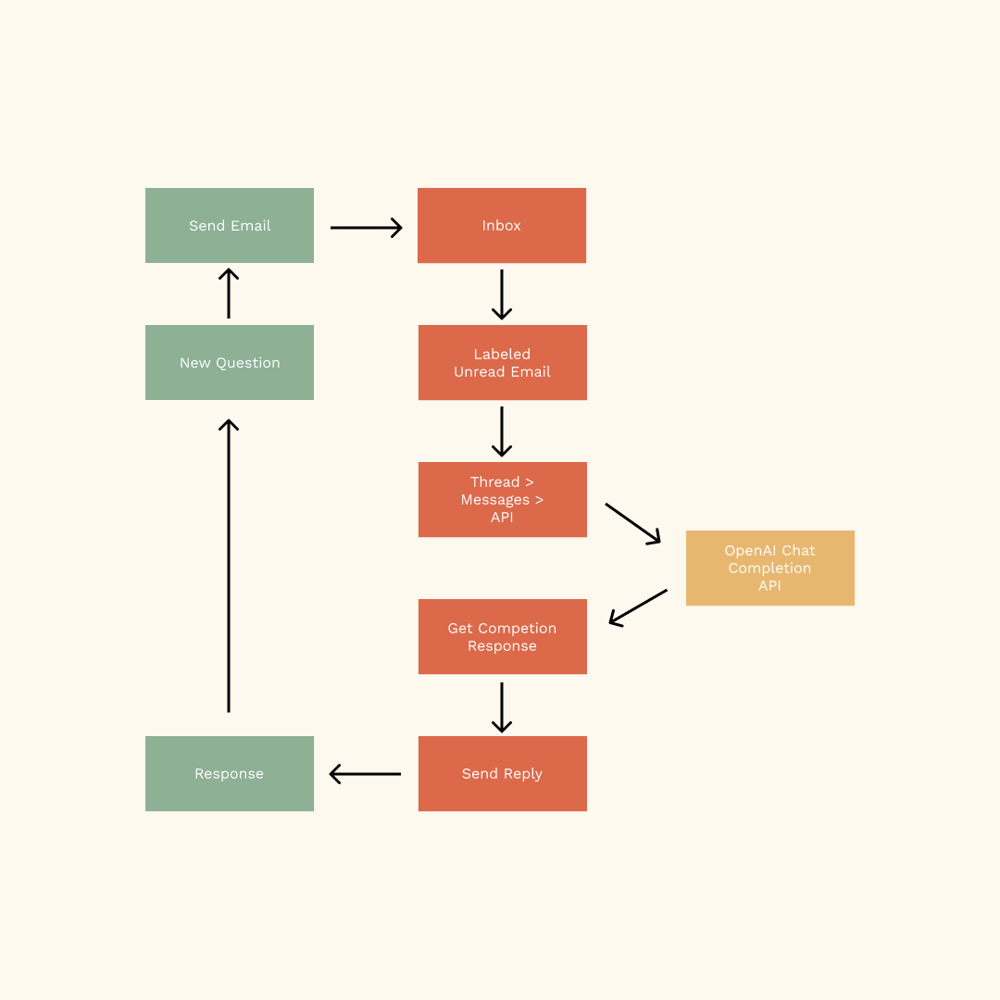
A new email (with a specific label or trigger) is picked up, the content is sent to an AI model (like Qwen) via API, the AI generates a response, and then the system sends the reply or saves it as a draft. This cycle can repeat periodically, allowing you to handle incoming emails hands-free.
1. Google Apps Script (Built-in Gmail Automation)
Google Apps Script is a cloud-based scripting platform provided by Google that lets you programmatically interact with Google services (like Gmail) using JavaScript code. The beauty of Apps Script is that it’s directly integrated with your Google account – you can access it via the Gmail interface or Google Drive, and your script runs on Google’s servers. To use Qwen with Gmail through Apps Script, here’s what you’d typically do:
Write a Script to Handle Emails: Using the GmailApp service in Apps Script, you can search and fetch emails. For example, you might have the script look for unread emails with a certain label (say you apply a label “QwenReply” to emails you want AI to handle). The script can retrieve the latest messages, including their subject and body text. You would then send this text to the Qwen AI model. Since Qwen is an AI model, you’d likely call it via an API (for instance, if you have Qwen hosted on a server or if an API endpoint is available for it). In Apps Script you can use UrlFetchApp.fetch() to call external APIs. You’d send the email content as input to Qwen and get back a generated response.
Draft or Send a Reply: After Qwen returns a suggested reply text, the script can either save it as a draft email in Gmail or send it immediately. Apps Script provides methods for both. If you want a human to review before sending (recommended for important emails), you can do: GmailApp.createDraft(recipient, subject, body) to create a draft reply. If you are confident in the automation for certain cases, you could use GmailApp.sendEmail or even Thread.reply() to send it. For example, a script could do something like:
const threads = GmailApp.search('label:QwenReply is:unread');
const unreadThreads = threads.filter(t => t.isUnread());

for (let thread of unreadThreads) {
  const messages = thread.getMessages();
  const lastMessage = messages[messages.length - 1];
  const emailText = lastMessage.getPlainBody();

  const aiReply = callQwenAPI(emailText); // pseudocode: your function to get AI reply

  thread.reply(aiReply); // send AI-generated reply to this thread
  thread.markRead();
  thread.moveToArchive();
}
This snippet (in pseudocode) searches for unread threads with the label, gets the email content, calls Qwen’s API to generate a reply, then uses thread.reply() to send the response and marks the email as read & archived. In a real script, you’d include proper error handling, and you might use createDraft instead of reply to save as draft. But this illustrates the idea. In fact, a Google developer advocate showcased a very similar Apps Script that integrates an AI (Google’s Gemini model) for Gmail: every hour the script scans for new emails addressed to him, sends the content and context to the AI, and the AI generates a one-liner summary plus a tailored draft response for each email. This draft is inserted into the thread, saving the user time and ensuring a professional tone in the reply. Google Apps Script makes it straightforward to insert replies like this.
Set Up Triggers (Automation): You don’t want to manually run the script every time – Apps Script allows you to set it to run automatically. You can create a time-driven trigger (like a cron job) that executes your function every X minutes, or every hour, etc. For example, you might set it to run the reply script every 5 minutes during business hours. That way, an email that comes in will get a drafted response in at most a few minutes. Google provides an easy interface to set triggers: in the Apps Script editor, you’d go to Triggers > Add Trigger, select your function (e.g. autoReplyEmails), choose “Time-driven”, and then “Every 5 minutes” (or whatever frequency makes sense). After you authorize the script to access your Gmail (the first time you set it up), it will run in the background. This is essentially building your own Gmail AI assistant inside Gmail. And since it’s your code, you can customize the logic as you wish – for example, only reply during certain hours, or skip certain senders, etc.
Labeling and Safety: Within the script, it’s smart to use labels to control which emails get automated. As mentioned, you might apply a Gmail label (like “AI-Reply” or “Qwen”) to incoming emails that are eligible for auto-response. That label could be set manually or via a Gmail filter (for instance, you could auto-apply the label to emails that come to a specific alias or that meet some criteria). The script then only touches those labeled emails. This ensures the AI doesn’t accidentally respond to something you wouldn’t want it to. Additionally, in the script’s logic you can add conditions like if the email is from my boss or is above 1000 characters, maybe don’t auto-reply. These guardrails help maintain quality. It’s worth noting that generative AI isn’t 100% foolproof – you as the script author should decide what level of confidence you have in Qwen for different scenarios. Many users start with draft mode (requiring manual send) until they trust the AI enough for fully automatic sends.
Using Google Apps Script is often the most accessible method if you’re already in the Google ecosystem. It doesn’t require setting up servers or deploying code externally; everything runs in Google’s cloud under your account. And it’s free (up to certain usage limits) – no need for paid Zapier plans or cloud VMs for basic usage. With a bit of JavaScript knowledge, you can have a functional Qwen email automation set up in an afternoon. Google even provides example Apps Script solutions – for instance, scripts to automatically reply to feedback emails or to manage email filters – which you can adapt to include AI-generated text. Many users have shared their scripts online for integrating ChatGPT with Gmail, which can be converted to use Qwen by calling Qwen’s API instead of OpenAI’s. The key takeaway: Apps Script + Qwen = a DIY Gmail AI chatbot living right in your inbox.
2. Python + Gmail API (Developer Approach)
For those who are comfortable with programming (or have more advanced needs), using the Gmail API with a language like Python gives you maximum flexibility. Google’s Gmail API allows external applications to read and send emails, manage threads and labels, and perform all sorts of mail operations, with the proper authentication. Here’s how a Python-based Qwen email responder might work:
Setup Authentication: You would first create Google API credentials for your app and authorize it to access your Gmail. This typically involves creating OAuth 2.0 credentials in Google Cloud Console and obtaining a token for the Gmail scope. There are Python libraries like google-auth and google-api-python-client that simplify this. Once authenticated, your Python script can act on your Gmail account (or a service account for domain-wide use in Workspace).
Read Incoming Emails: Your script could Use the Gmail API to check for new or unread messages. For example, it might call the users.messages.list endpoint with query parameters like q="is:unread label:Qwen" to get all unread emails with a certain label. Then for each message ID returned, you’d call users.messages.get to retrieve the full email content. The Gmail API can return the email body in raw format or as parsed parts (plain text, HTML, etc.). In code, you might do something like:
service = build('gmail', 'v1', credentials=creds)
results = service.users().messages().list(userId='me', q='label:Qwen is:unread').execute()
messages = results.get('messages', [])
for msg in messages:
    raw_email = service.users().messages().get(userId='me', id=msg['id'], format='full').execute()
    # Extract the email body text from raw_email
    email_body = extract_text(raw_email)
    # Call Qwen AI API with email_body to get a reply
    ai_reply = get_qwen_reply(email_body)
    # ... (continue below)
This is conceptual, but it’s similar to what developers on forums have done to integrate ChatGPT with Gmail. The key is you fetch the email content that will serve as prompt input to Qwen. You might also include context like the original email’s subject or sender, depending on how you want the AI to frame the reply.
Generate Reply with Qwen: Next, you pass the email content to the Qwen model. If you have Qwen running locally or on a server, you would call it there. If Qwen is accessible via an API (for example, some hosted service or through an open-source model API), you’d POST the prompt and get back the completion. If Qwen’s API usage is similar to OpenAI’s, you might send a request with the email text and some instruction like “Compose a helpful reply to this email.” Possibly, you’ll include a system message about the tone (e.g., “You are a customer service assistant,” etc.). The output you get is the draft reply text.
Send or Save the Response: Once you have the AI-generated reply text, use the Gmail API to deliver it. There are two approaches:
Send as a Reply: You can send an email via Gmail API by creating a MIME message (with proper “To”, “Subject”, and “In-Reply-To” headers to keep it in the same thread) and then calling users.messages.send. Essentially, you base64-encode the email content and send it in the API request. This will send the email out immediately. Developers have shared Python scripts that do this: one approach is to use Python’s smtplib to send via Gmail SMTP, but using Gmail API’s send is more direct. For example, one open-source script monitored a Gmail inbox via IMAP, used OpenAI’s API to craft a response, and then sent the reply via Gmail’s SMTP server automatically – the same can be done with Qwen by replacing the API call and using Gmail API for sending.
Save as Draft: Alternatively, you might prefer to create a draft in Gmail (so you can review it in the Gmail interface). The Gmail API has an endpoint to create drafts. You still prepare the MIME message, but instead of sending, you call users.drafts.create. For instance, a helper function can take a subject and body and do service.users().drafts().create(userId='me', body={'message': {'raw': encoded_message}}). This will save the AI’s response as a draft reply in the thread. One developer on the OpenAI forum suggested exactly this approach – after getting the GPT output, they saved it as a draft in Gmail so it would appear in the Drafts folder ready to be reviewed. This method is great for a “human-in-the-loop” workflow: your Python app does all the heavy lifting, but you (or your team) give the final OK by sending the draft manually.
Run the Script Automatically: To truly automate, you would run this Python script on a schedule (perhaps as a cron job on a server) or as a persistent service using Gmail’s push notifications (which is more advanced, involving Pub/Sub to listen for new emails in real-time). Many simple implementations just run the script every few minutes to check for new emails. If you’re using this in a business environment, you might deploy it on a cloud function or a small VM that runs 24/7. Ensure you handle authentication refresh (Google’s OAuth tokens expire, but libraries handle refreshing with a refresh token usually). Also, implement logging – you’d want to log what replies were sent (or at least message IDs) for auditing.
Customization: The Python route lets you integrate other data sources as well. For example, before generating a reply, your code could fetch relevant info from your database (like the customer’s order status) and include that in the prompt to Qwen, so the AI has context to answer accurately.
You could also branch logic: if an email is very complex, maybe instead of auto-replying you just notify a human. Python gives you full control to craft these workflows. It’s essentially building a custom email-handling AI app.
While this approach requires more coding than Apps Script, it can be more powerful and reusable. You could integrate the Gmail-Qwen automation into your existing backend systems. And you’re not limited by Google’s Apps Script quotas – with your own app you can scale as needed (keeping in mind Gmail API usage limits and Qwen’s runtime requirements).
A Python solution might be preferable if, say, you want to deploy an AI responder for multiple mailboxes at once or if you want to use a self-hosted Qwen model for privacy reasons.
There are already examples in the wild: developers have created Gmail auto-reply bots with Python that tie into AI APIs (OpenAI, etc.), demonstrating parsing emails, generating responses, and replying automatically. Adapting those to Qwen would typically involve pointing the code to Qwen’s API endpoint or model inference instead of OpenAI. The end result is the same – your own AI email bot, but running as a standalone application.
3. No-Code Tools (Zapier, Make.com, etc.)
If you’re not a developer and don’t want to write scripts, you can still automate Gmail with Qwen AI using no-code automation platforms. Two popular options are Zapier and Make (formerly Integromat). These services let you create workflows (often called “Zaps” in Zapier or “scenarios” in Make) by connecting triggers and actions between apps – in our case, Gmail and an AI service.
- Zapier: Zapier has built-in integrations for Gmail and for some AI models (not sure if Qwen specifically, but it supports OpenAI GPT, and you can use webhooks for any API). A typical Zap for AI email replies might look like: Trigger: “New Email in Gmail” (you can filter to certain labels or conditions, e.g. only trigger if the email is to a specific address or contains certain keywords). Action 1: “Format or prepare data” (optional step – you might extract just the email body or truncate it if too long). Action 2: “Send Prompt to AI” – Zapier has an OpenAI integration where you provide a prompt and it returns the completion. If Qwen is not directly integrated, you could use a Webhook action to call a custom API endpoint where Qwen is hosted. Alternatively, Zapier’s AI by Zapier feature or OpenAI integration could possibly be configured with a system prompt to mimic Qwen’s style (though that wouldn’t be using Qwen itself, strictly speaking). Action 3: “Send Gmail Reply” – Zapier’s Gmail integration allows you to send an email or reply to a thread. You would take the text from the AI in the previous step and plug it into the reply body here. You can have it reply in the same thread by specifying the thread ID, which Zapier can often get from the trigger data. Action 4 (optional): “Apply Label” – as a post-processing step, you might have Zapier label the email as “AI-Replied” or move it to a certain folder, so you know it was handled. Zapier is quite powerful and even provides some ready-made templates. In fact, Zapier’s blog explicitly suggests that if fully automatic replies are critical, you can connect your email to Zapier and integrate with ChatGPT or other models to generate and send responses automatically. The same principle applies if using Qwen via Zapier. They have showcased examples like using AI to draft emails or summarize emails into Slack messages. Using Zapier, you could build a no-code workflow in minutes that achieves what might take hours to code from scratch.
- Make.com (Integromat): Make is another automation platform, similar to Zapier, known for its flexibility. Notably, Make already has a Qwen AI integration available. This means you can directly choose Qwen AI as an app in your scenario, without needing a custom webhook. For example, in Make you could set up: Trigger: Gmail module “Watch Emails” (triggered when a new email arrives or is labeled). Action: Qwen AI module “Create a Chat Completion” or “Generate Text” (Make provides these; you input a prompt, possibly including the email text, and it returns the AI-generated completion). Next Action: Gmail module “Create a draft email” or “Send an email”. You would map the output from Qwen into the body of this email action. Additional steps: you might add a filter in the scenario to only run for certain emails, or an action to update the email’s label (Make has “Update email labels” for Gmail). Essentially, Make provides a visual flowchart editor. You drag the Gmail icon, Qwen icon, connect them, and set the parameters. For instance, Make’s website mentions “Connect Qwen AI and Gmail to automate anything… design workflows with a few clicks”. It even highlights that you can do this without writing code and that it’s as simple as selecting triggers and actions. Since Qwen is integrated, you don’t have to worry about the API details – just provide your Qwen API key and prompt.
- Use Cases for No-Code: No-code tools are ideal for quick setups and for non-engineers. Some use case examples:
- Automated Acknowledgement: Whenever an email arrives to [email protected], send a “Thank you, we received your request and will respond shortly” email. Qwen can even customize that message (e.g., include the sender’s name or paraphrase their query in the response) to make it feel less canned.
- Summaries to Slack: A scenario where an email triggers Qwen to summarize it, and then the summary is posted to a Slack channel for the team. This isn’t a direct email reply, but it’s a useful automation (Zapier actually offers “daily digest of emails in Slack” using ChatGPT as an example).
- Email Classification: Instead of replying, you could have Qwen classify the email (via a prompt like “Output one of: Sales, Support, Billing, Other based on this email’s content”) and then use Gmail’s label action in Zapier/Make to tag it accordingly. This helps prioritize and route messages. Shortwave (an email tool) offers AI filters that do similar things – label, star, or archive emails based on AI understanding of content.
- Draft Generation for Review: You can configure the automation to draft a reply and maybe even email you that draft for approval. For example, Zapier could create a Google Doc with the draft text for you to review, or just leave it as a draft in Gmail.
One great advantage of no-code platforms is speed of iteration – you can tweak the workflow logic in a friendly UI and test it easily. However, be mindful of data privacy: if you use Zapier/Make and connect to Qwen, you might be sending your email data through those third-party servers and Qwen’s API. Make sure that’s acceptable for your use case (especially in a corporate setting with sensitive info; you may need to opt for a self-hosted solution in that case).
In summary, Zapier and Make provide an approachable path to get Qwen automation up and running in Gmail without deep technical knowledge. They handle the API connections and trigger polling behind the scenes. Whether you choose Apps Script, Python, or a no-code tool might depend on your comfort level and where you want this automation to live (in-cloud vs. your own app vs. third-party service). Now that we’ve covered how to implement the solutions, let’s discuss an important consideration: how “hands-off” should you go with AI in charge?
Human-in-the-Loop vs. Fully Automated Responses
When deploying AI for email replies, a key decision is whether to have the AI send responses directly or to require human review first. Both modes are possible with Qwen, and the best choice can depend on context. Here’s some guidance:
- Human-in-the-Loop (Recommended Default): In most cases, especially early on, you’ll want Qwen to draft responses for a human to review and approve. This means the AI never hits “Send” on its own – it might create a draft in Gmail, or send the draft text to an interface where a person quickly checks it. The person can then edit as needed and send it manually. This approach is recommended because it provides a safety net: you catch any errors, off-tone language, or incorrect information before it reaches the recipient. It’s also reassuring for compliance – many companies have policies that customer communications must be reviewed. Even Google’s and Microsoft’s own AI email features work this way: for instance, Gmail’s new “Help me write” (Gemini) feature will generate a reply and place it in the compose field for you to tweak, rather than sending automatically. This “AI draft, human send” workflow is powerful – you still save time (all you might do is minor edits), but you ensure quality control. Industry experts also note that current AI isn’t 100% ready to work entirely unsupervised for complex tasks. The AI might misunderstand a nuance in an email or not know something that a human would. By keeping a human in the loop, you get the best of both worlds: AI speed and human judgment. In practice, you could start with human-in-loop for all emails. Over time, as you gain confidence in Qwen’s accuracy on certain types of messages, those could be gradually moved to full automation (or maybe only a spot-check is done occasionally).
- Fully Automated Mode (Use Selectively): In some scenarios, you may decide that it’s safe and beneficial to let Qwen send replies without human intervention. This is best for low-risk, highly repetitive emails where the content is formulaic. Examples:
- FAQs and Simple Questions: If someone emails “What are your business hours?” or “How do I reset my password?”, these answers are straightforward and documented. You might allow Qwen to answer such queries instantly with a pre-approved answer (perhaps the AI just looks up the info from a knowledge base). Many customer support systems aim to auto-resolve common FAQs this way. Earlier, automation tools could only give link-based answers, resulting in low full automation rates (~10% of customer service journeys fully automated). But with generative AI, that percentage can grow because the AI can compose a natural answer. Still, you’d likely supervise initial outputs to ensure they’re correct.
- Acknowledgments and Receipts: Emails that simply confirm receipt of something can often be automated. For instance, when an order confirmation or form submission comes in, Qwen could reply: “Thank you, we’ve received your email and will get back to you within 24 hours.” These messages carry little risk – they don’t need personalization beyond perhaps the name, and they don’t make decisions or commitments beyond what’s standard. Automating them saves time and gives immediate reassurance to the sender.
- Recurring Operational Emails: Suppose your team gets a daily status email that always requires the same response, or an approval request email that can be rubber-stamped if it meets criteria. You could program Qwen to identify those and send the canned approval reply. As another example, some companies have emails coming in to request an appointment or a tracking update that could be answered by pulling from a database. If Qwen can be integrated with your data, it might fully handle those (“Your package is scheduled for delivery on X date, per your request”).
When implementing fully automated replies, robust testing and gradual rollout are important. You might start by ghost-running the automation (have it compose replies and log them, but not actually send) to see how it performs. Once you’re satisfied the answers are accurate and on-brand, you can flip the switch to auto-send for that specific category.
It’s also wise to keep humans in the loop in a monitoring capacity. For example, you could have automated replies BCC an internal email or log to a sheet, so someone can periodically review what’s going out and ensure nothing has gone awry.
Remember that even in automation, context is key. If a query is slightly different from what the AI expects, it might give a wrong answer. That’s why fully unattended AI works best in narrow, well-defined cases. According to one Zapier review of AI email tools, most AI email assistants today focus on drafting and triaging rather than sending completely autonomously because good replies require understanding context from various data sources.
However, they note that if you do want end-to-end automation, it’s achievable by connecting your inbox to systems like Zapier with an AI model – essentially what we described above.
- Compliance and Approval Flows: In a business setting, even if an email is auto-generated by Qwen, you might need a human manager to approve it for compliance reasons (e.g. in finance or healthcare industries). One way to handle this is a semi-automated pipeline: Qwen drafts the email, then forwards it or assigns it to a supervisor who quickly reviews and hits send. This can be done by having the AI add a specific label like “Needs Approval” once it drafts a reply; a manager can search those and review. Or integrate with a ticketing system – the AI could paste the draft answer into a help desk comment and an agent clicks “send” in the help desk interface. These kinds of human checkpoints ensure you don’t inadvertently violate any regulations or send out incorrect info that could be costly.
To sum up this part: We recommend starting with human-in-the-loop automation. Leverage Qwen to the fullest – let it generate full email drafts, suggest replies, categorize messages, etc. – but keep final sending rights to yourself or your staff until you’re confident. This will quickly build trust in the AI’s capabilities. You’ll likely find that Qwen’s drafts are on-point the majority of the time, requiring only minor edits. Over time, for those routine emails where you notice the drafts are always good, you can consider moving to a fully automated response to save that last bit of time.
Always continue to monitor and have a fallback (e.g. if the AI is unsure, it shouldn’t guess – it could leave the email for a human). By balancing AI efficiency with human judgment, you ensure that quality, accuracy, and tone stay in check. As one expert aptly put it, AI isn’t there to replace you, but to shave minutes off every message through assistance and automation. With Qwen AI handling the grunt work and you overseeing the important decisions, your Gmail can effectively run on autopilot for the mundane stuff, giving you more freedom to focus on the emails (and tasks) that truly need your expertise.
Conclusion: Automating Gmail responses with Qwen AI can be a game-changer for productivity. By focusing on high-value use cases (like customer support, sales inquiries, and email triage), both individual users and businesses can save countless hours and respond faster to important communications.
We’ve seen that you can implement this with simple Apps Script tweaks, robust Python code, or user-friendly no-code tools – so there’s an approach for every comfort level. The key is to deploy the AI thoughtfully: use it to draft and categorize, apply human oversight especially at the start, and gradually expand what you let it do as confidence grows.
Early adopters of AI email assistants report significantly reduced email clutter and faster turnaround times, without sacrificing quality. In a world where email can be a major time sink, Qwen offers a way to make your inbox work smarter, not harder. By following the steps and best practices outlined above, you can set up an automated Gmail workflow that handles routine emails in the background, keeps your communications flowing 24/7, and ultimately helps you or your team be more responsive and efficient.
It’s like having a diligent assistant who never sleeps – right inside your Gmail. Give it a try, and you might wonder how you managed your inbox without a little AI help!